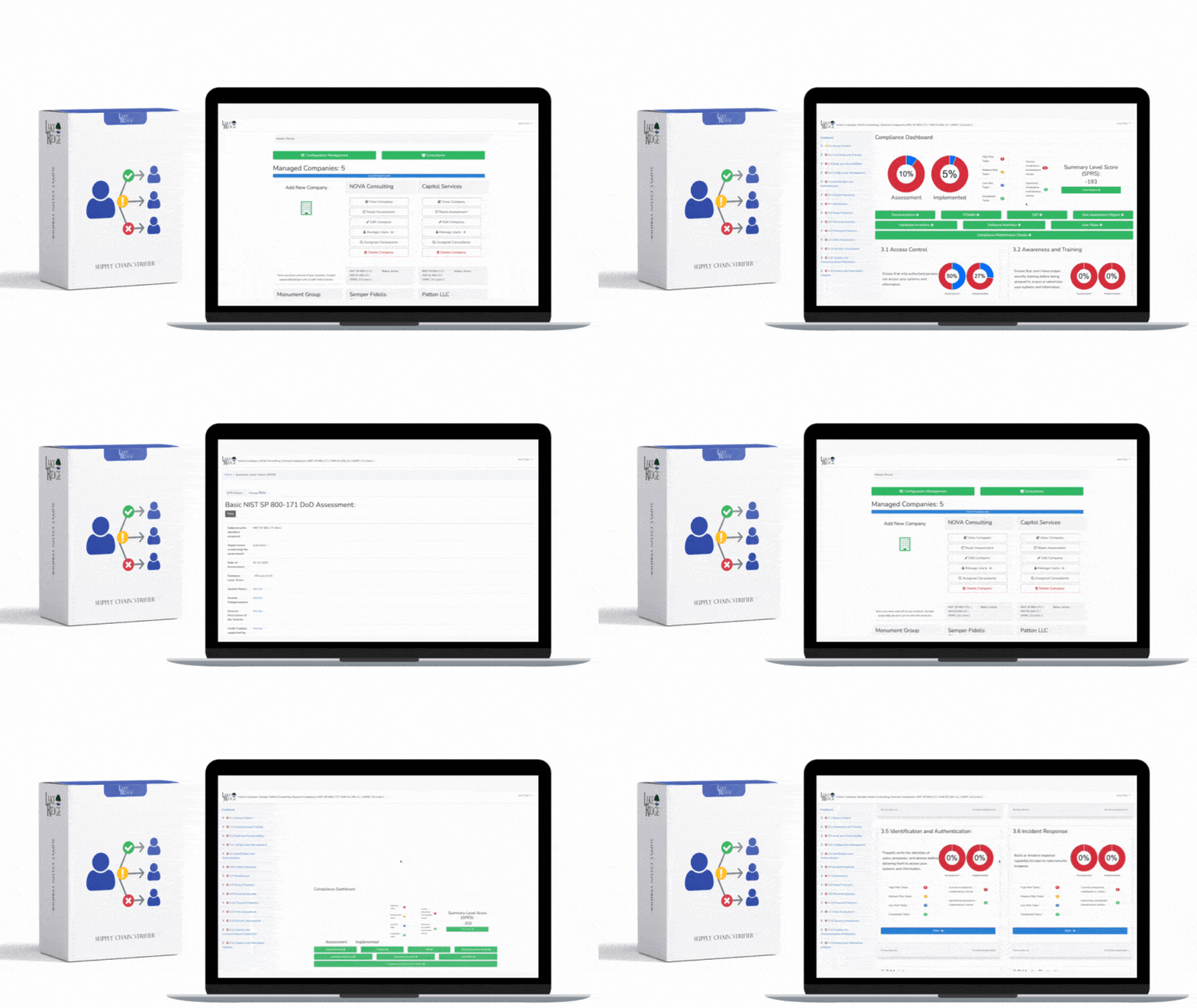
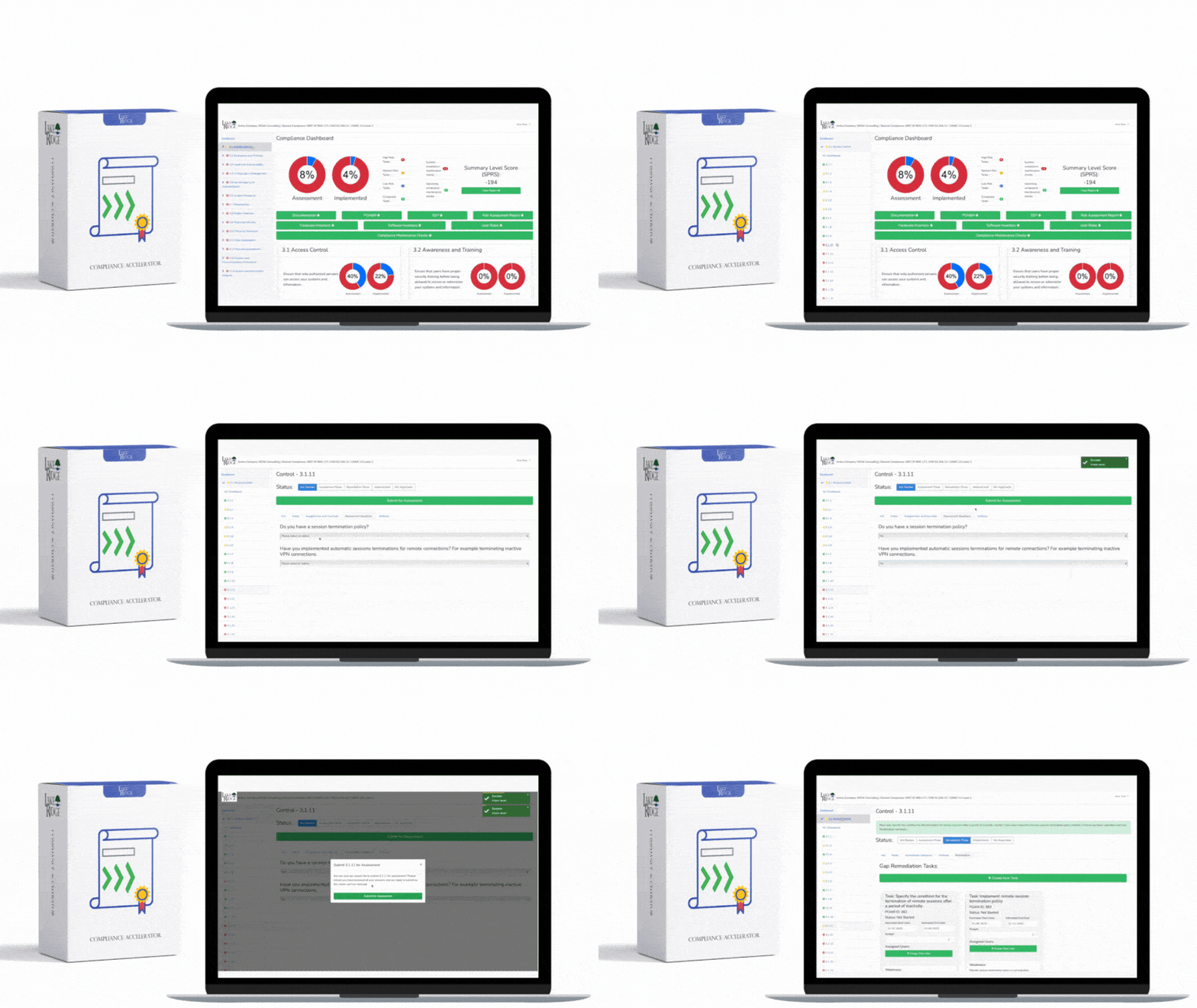
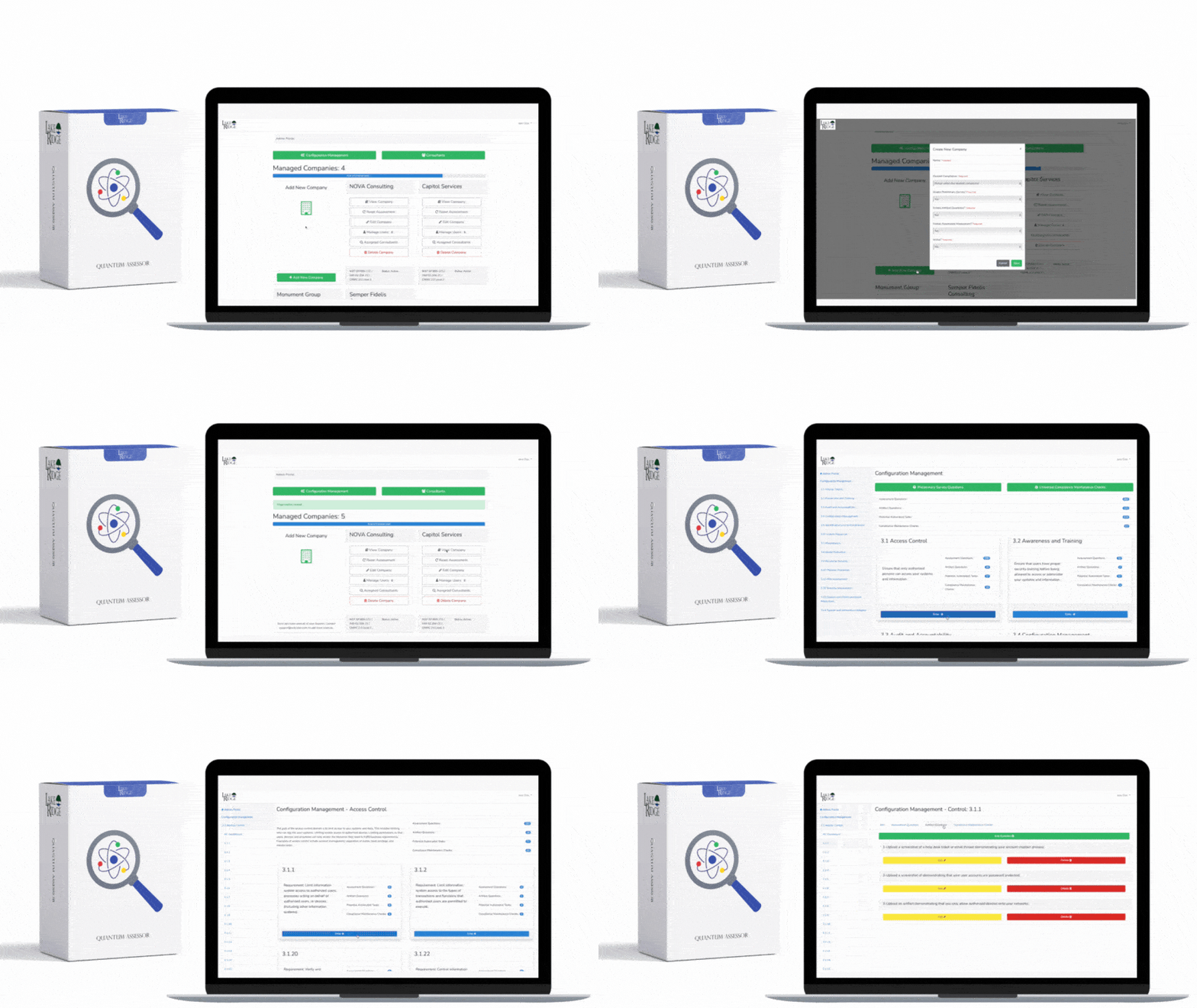
This post explains how small and mid-sized organizations can use Microsoft System Center Configuration Manager (SCCM/ConfigMgr) and Microsoft Intune (Endpoint Manager) to implement, enforce, and produce audit evidence for the NIST SP 800-171 Rev.2 / CMMC 2.0 Level 2 configuration management control CM.L2-3.4.2 (establish and enforce secure/configured baselines and detect remediation drift).
What CM.L2-3.4.2 requires and how SCCM/Intune map to it
At a high level CM.L2-3.4.2 expects organizations to create and maintain secure configuration baselines for organizational systems, ensure systems are configured to those baselines, detect drift, and remediate non-compliant settings. In Microsoft tooling this maps directly to: (1) creating configuration baselines (SCCM Configuration Baselines / Intune configuration profiles and security baselines), (2) deploying those baselines/policies to device groups, (3) enabling automated remediation where possible (SCCM remediation, Intune PowerShell/CSP), and (4) collecting/exporting compliance evidence (reports and device compliance states).
Practical implementation steps (high-level)
For an organization using both tools (co-management) or choosing one, a practical flow is: 1) Define baseline(s) in a documented format that maps settings to NIST/CMMC requirement IDs (maintain a control-to-setting matrix), 2) Implement baselines in SCCM as Configuration Items & Baselines and in Intune as Configuration Profiles / Security Baselines / Custom OMA-URI items, 3) Test in a pilot collection/group, 4) Deploy broadly with remediation enabled, 5) Monitor compliance dashboards and schedule periodic evaluations, and 6) Export evidence and record exceptions in change control.
Detailed SCCM steps (ConfigMgr)
In SCCM (ConfigMgr) use Compliance Settings: Assets and Compliance → Overview → Compliance Settings. Create Configuration Items (CI) that detect a setting and optionally remediate it. Detection can be PowerShell scripts, registry checks, file ACL checks, service state checks, or built-in setting types. Example: create a CI to detect BitLocker state using a detection script Get-BitLockerVolume | Where-Object {$_.ProtectionStatus -eq 'On'} and a remediation script that triggers Enable-BitLocker with an escrow routine to AD/AAD. Add CIs to a Configuration Baseline, enable automatic remediation, then deploy the baseline to a well-scoped collection (pilot → staged → all). Configure evaluation schedules (e.g., every 1 day) and remediation throttling to avoid overload.
Detailed Intune steps
In Intune (Microsoft Endpoint Manager) build corresponding profiles: use Security Baselines (Windows 10/11 and Edge) as the quick start; for settings not covered, create Device Configuration Profiles (Templates → Administrative Templates or Custom OMA-URI). For example, enforce BitLocker via Endpoint security → Disk encryption policy (choose platform Windows 10 and later) and require encryption with XTS-AES 256. Use Device compliance policies + Conditional Access to block access for non-compliant devices. For settings that need detection + remediation, deploy PowerShell scripts (Devices → Scripts) to run detection and remediation; use the "remediate" approach by running detection first and only running remediation on non-compliant devices. Use dynamic Azure AD groups to target devices by OS, ownership, or CUI-handling role.
Real-world examples and small-business scenarios
Scenario A — Small defense subcontractor with 50 laptops, cloud-first: Use Intune-only. Import Microsoft Security Baselines, enable Disk encryption and Windows Firewall baseline, create a custom OMA-URI to disable SMBv1, deploy a script that verifies LAPS is installed and local admin passwords are rotated. Use Azure AD dynamic groups (e.g., "CUI-handling devices") to target CUI devices. For evidence, export Intune device configuration compliance CSVs and screenshots of baseline configuration versions for an auditor.
Scenario B — Hybrid shop with on-prem imaging and 200 devices: Use co-management. Keep SCCM for imaging/software distribution and move compliance/setting enforcement to Intune by shifting the "Compliance and Configuration" workload in the Co-management settings, or alternatively use SCCM Configuration Baselines for servers and critical on-prem laptops. Use ConfigMgr for initial remediation scripts where on-prem scripts need local network resources (e.g., internal PKI enrollment), and Intune for ongoing policy enforcement for Azure AD-joined assets. Integrate SCCM inventory into your CMDB (ServiceNow/GLPI) to satisfy baseline inventory requirements tied to CM.L2-3.4.2.
Technical configuration examples (concrete checks & remediation)
Useful detection examples you can implement quickly: registry check for SMBv1 disabled (HKLM:\SYSTEM\CurrentControlSet\Services\LanmanServer\Parameters\ SMB1 = 0), service state check for RemoteRegistry disabled, cipher suite/TLS settings via registry, and file ACL checks on C:\Program Files\CustomApp. Remediation methods: SCCM remediation scripts or Intune PowerShell that call Set-ItemProperty, Disable-Service, or enable BitLocker with Add-BitLockerKeyProtector. For Intune OMA-URI, use ./Device/Vendor/MSFT/Policy/Config/LocalPoliciesSecurityOptions/ Both tools provide reporting: SCCM's Compliance Settings -> Deployments view shows compliant vs non-compliant counts and history; Intune's Device Configuration -> Reports and the Device compliance dashboard do the same. For CMMC audits you should export scheduled reports (CSV/PDF), keep copies of baseline definitions (export CI JSON or document each setting mapped to CM.L2-3.4.2), and retain remediation logs (SCCM client remediation activity, Intune script results). Schedule periodic baseline evaluations (daily/weekly) and record that schedule in your Compliance Framework documentation as evidence of ongoing monitoring. 1) Keep a control-to-setting matrix: map each SCCM/Intune setting to the CMMC/NIST control ID and the evidence artifact path. 2) Version baselines and use descriptive naming (e.g., "CUI-Windows10-SecurityBaseline-v1.2 – CM.L2-3.4.2"). 3) Test in pilot collections/dynamic groups before broad deployment; use maintenance windows and remediation throttles. 4) Use RBAC in SCCM and Intune to restrict who can edit baselines. 5) Maintain change control for baseline updates—record justification and rollback plans. 6) Leverage Microsoft Security Baselines as a starting point and harden further where your risk assessment dictates. 7) For any exceptions, document compensating controls and time-limited waivers. If baselines are not enforced or drift is not detected you face increased attack surface (unpatched or misconfigured hosts, weak encryption defaults, lingering admin accounts), greater chance of data exfiltration of CUI, failed CMMC/NIST audits, contract loss, and regulatory penalties. On the operational side, configuration drift leads to inconsistent troubleshooting and elevated support costs. From a security perspective, common exploits target known misconfigurations (SMBv1, weak TLS, disabled firewall) that proper baselines and remediation would prevent. In summary, SCCM and Intune together provide a robust mechanism to meet CM.L2-3.4.2 — create documented baselines mapped to the control, implement them as Configuration Items/Baselines in SCCM and as Security/Configuration profiles in Intune, enable automated remediation, monitor compliance dashboards, export evidence for audits, and maintain change control and exception records. For small businesses the pragmatic choice is often Intune-first (cloud-managed) with SCCM used where on-prem dependencies exist — but in all cases follow pilot→staged→production deployments and keep your control-to-setting mapping up to date to prove compliance.Compliance evidence, drift detection, and reporting
Compliance tips and best practices
Risks of not implementing CM.L2-3.4.2 correctly